1. Create your account2. Connect Lemonn 3. Read the dashboard4. Analyse a stock 5. Build a position6. Record & track 7. Notes8. Telegram & community 9. Billing10. What this platform is not
1Create your account
- Go to the site and tap Get started (or Create account).
- Enter your email, a password (8+ characters) and your mobile number — or use Continue with Google.
- Confirm your email. If you signed up with email and password, we send a 6-digit code to that address — enter it on the next screen. It is valid for 10 minutes; check spam if you don't see it, tap Resend code for a new one, or Wrong email? Start over if you mistyped the address. (Google sign-ins skip this step.)
- Look around free for 24 hours — no card needed. A strip at the top of every page counts down the time left.
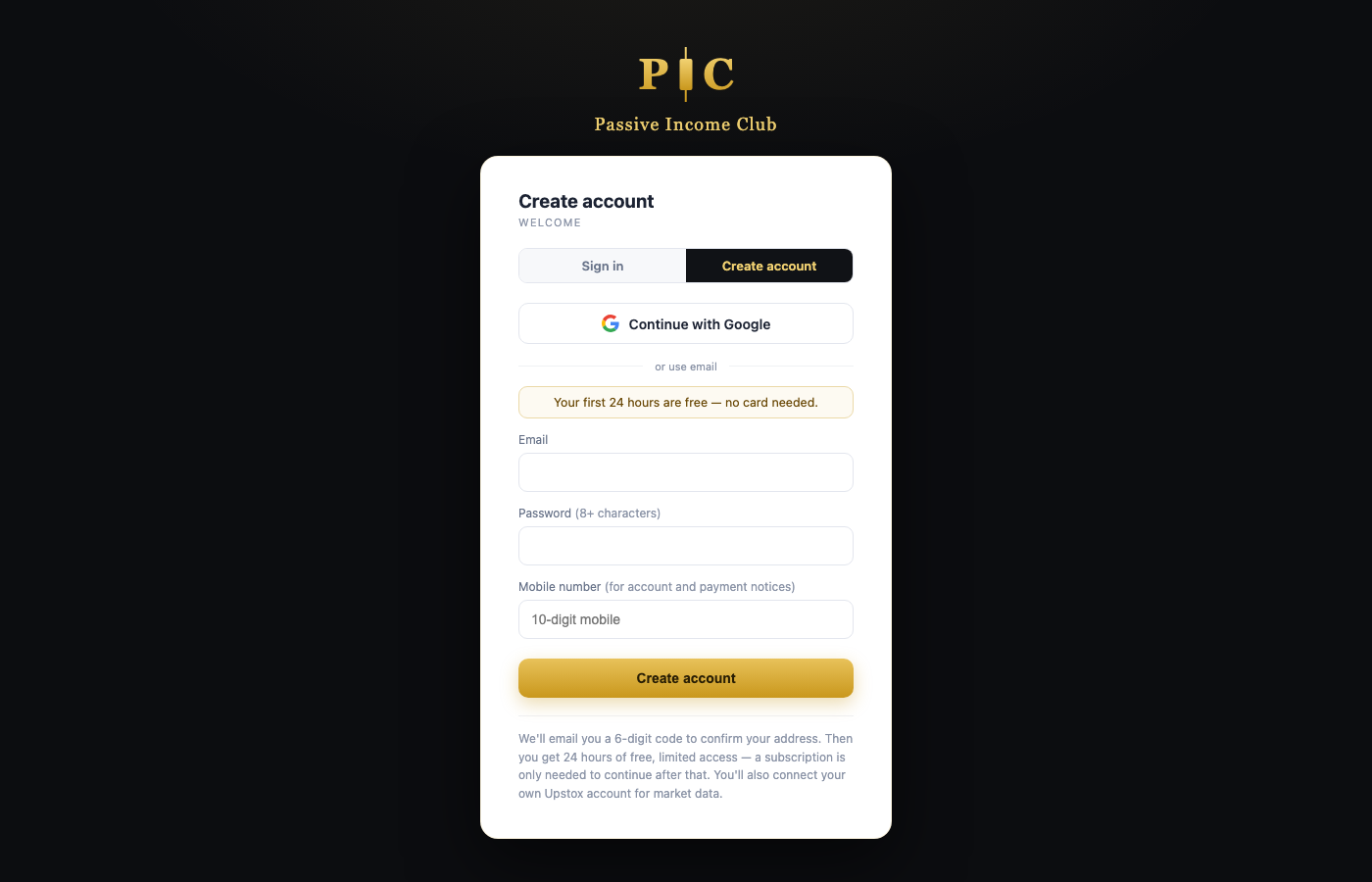
Your free 24 hours
- You see the chart condition for all 50 Nifty stocks on the dashboard.
- You can use the full toolkit — analysis, option chain, notes, watchlist and position tracking (real and paper) — on the 4 largest stocks by index weight. The other cards show a 🔒 and open when you subscribe.
- Telegram alerts and the members' community are for subscribers.
- When the time is up, every page takes you to the plans. Anything you recorded is kept. One free period per person.
Subscribing
- Tap Subscribe in the countdown strip at any time — you don't have to wait for the free period to end.
- Choose a plan: ₹1,999 per month or ₹19,999 per 15 months (≈ ₹1,333/month). Both include GST and everything on the platform.
- If you were given a coupon code, enter it before paying — the page shows exactly what it gives you and when your first charge lands.
- Approve the payment mandate (UPI Autopay or card) in the Razorpay popup. Full access starts instantly.
2Connect Lemonn
The platform never sees your broker password or PIN — instead, your own free Lemonn account supplies your live market data. The dashboard opens once you have connected for the day.
- Click 🔌 Connect Lemonn (header button or the banner).
- Log in on Lemonn's own page — they hand the app a daily access token.
- The header shows Live when connected.
If the session has lapsed, the Positions page shows a red "session has expired — Reconnect" banner. Until you reconnect, the stock price shows the last close (tagged AS OF CLOSE) and margins read "last known". Before the market opens at 09:15, option prices are taken from the previous close and tagged AT PREV CLOSE — they turn live once trading starts.
3Read the dashboard
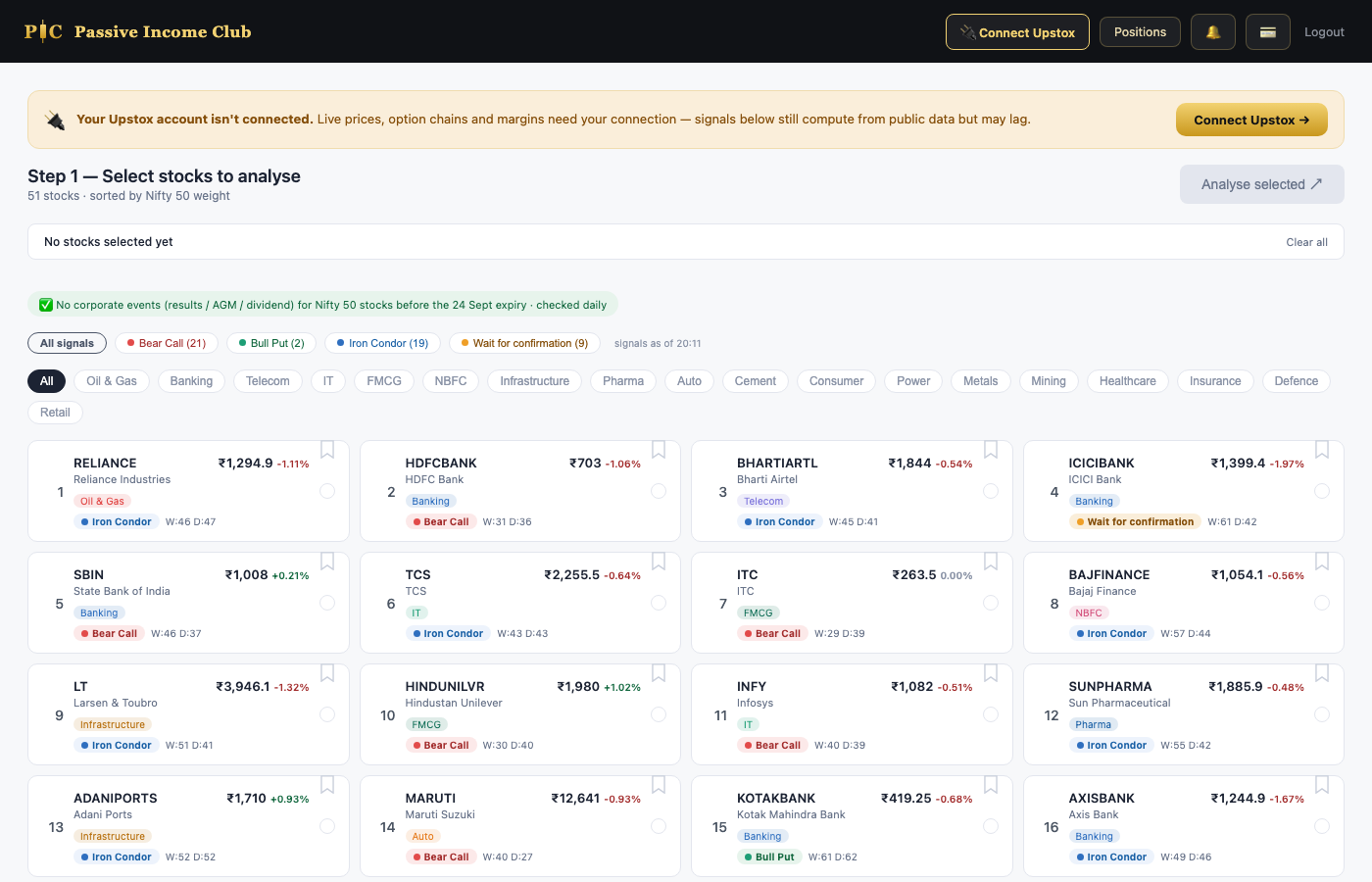
Every card shows the stock, its live price, sector — and a signal chip describing the current chart condition:
- 🔴 Bear Call — weekly + daily RSI both in the bearish zone.
- 🟢 Bull Put — both RSI zones bullish.
- 🔵 Iron Condor — RSI zones neutral / range-bound.
- 🟡 Wait for confirmation — the two timeframes disagree; no clean setup.
The W:46 D:37 numbers are the weekly and daily RSI values behind
the chip.
Filters, watchlist and event badges
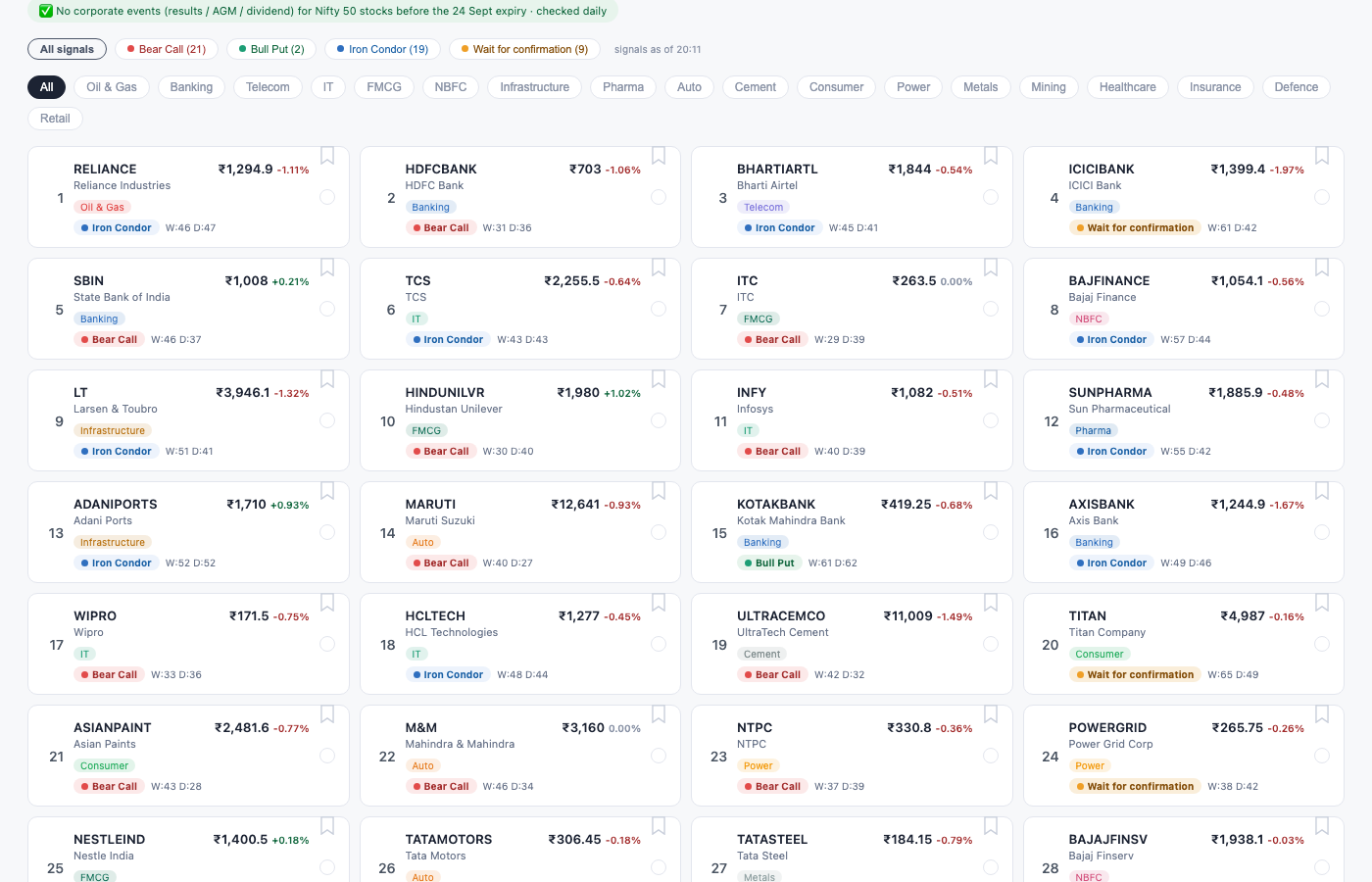
- Filter by signal or sector with the chips above the grid.
- Tap the bookmark ribbon on any card to add it to your personal watchlist, then filter to just your list.
- Small coloured badges warn of upcoming corporate events before the expiry — R results, A AGM/EGM, D dividend, B bonus/split. A green note tells you when there are simply none.
4Analyse a stock
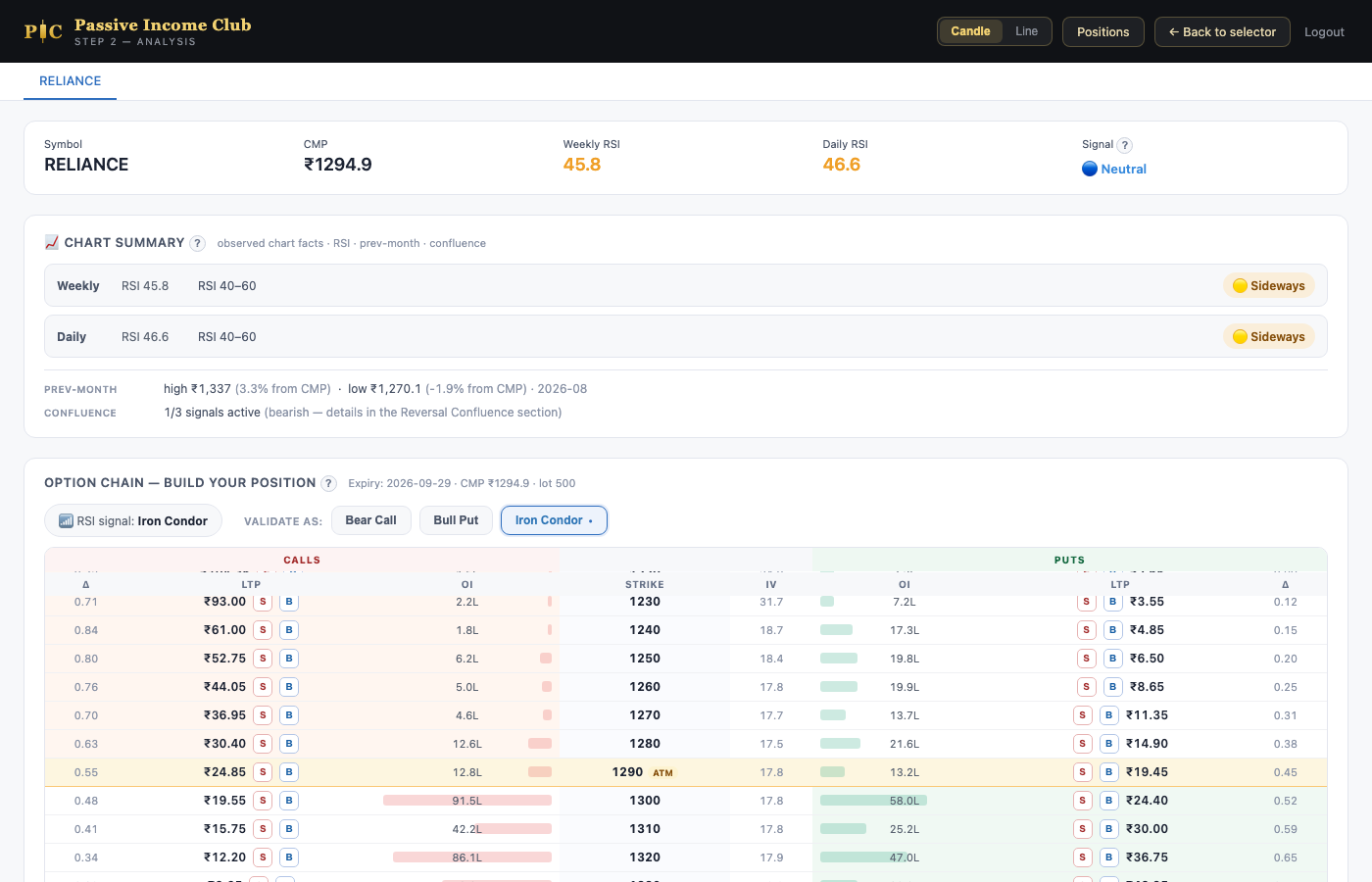
Select one or more stocks and hit Analyse selected. The analysis page is the heart of the platform:
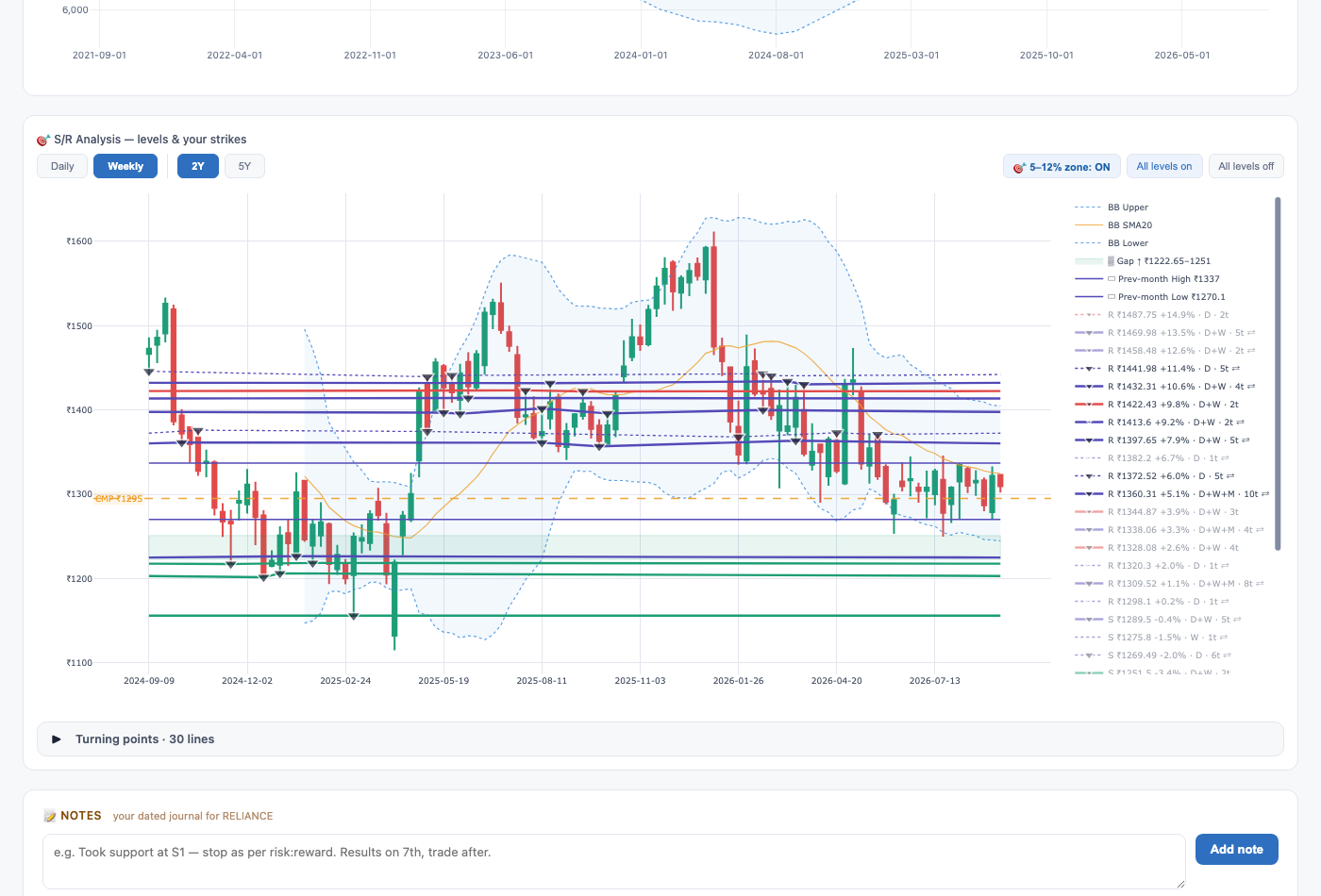
The support & resistance chart
- Green lines are supports, red lines resistances — found from actual price reversals on the daily (2-year) and weekly (5-year) charts, merged when both agree.
- Click a line's row in the legend to open its turning-point dropdown — every date the market respected that level, marked with black triangles.
- Switch the candles between Daily, Weekly and Monthly, and the history shown between 1Y / 2Y / 5Y (Monthly always shows 5 years).
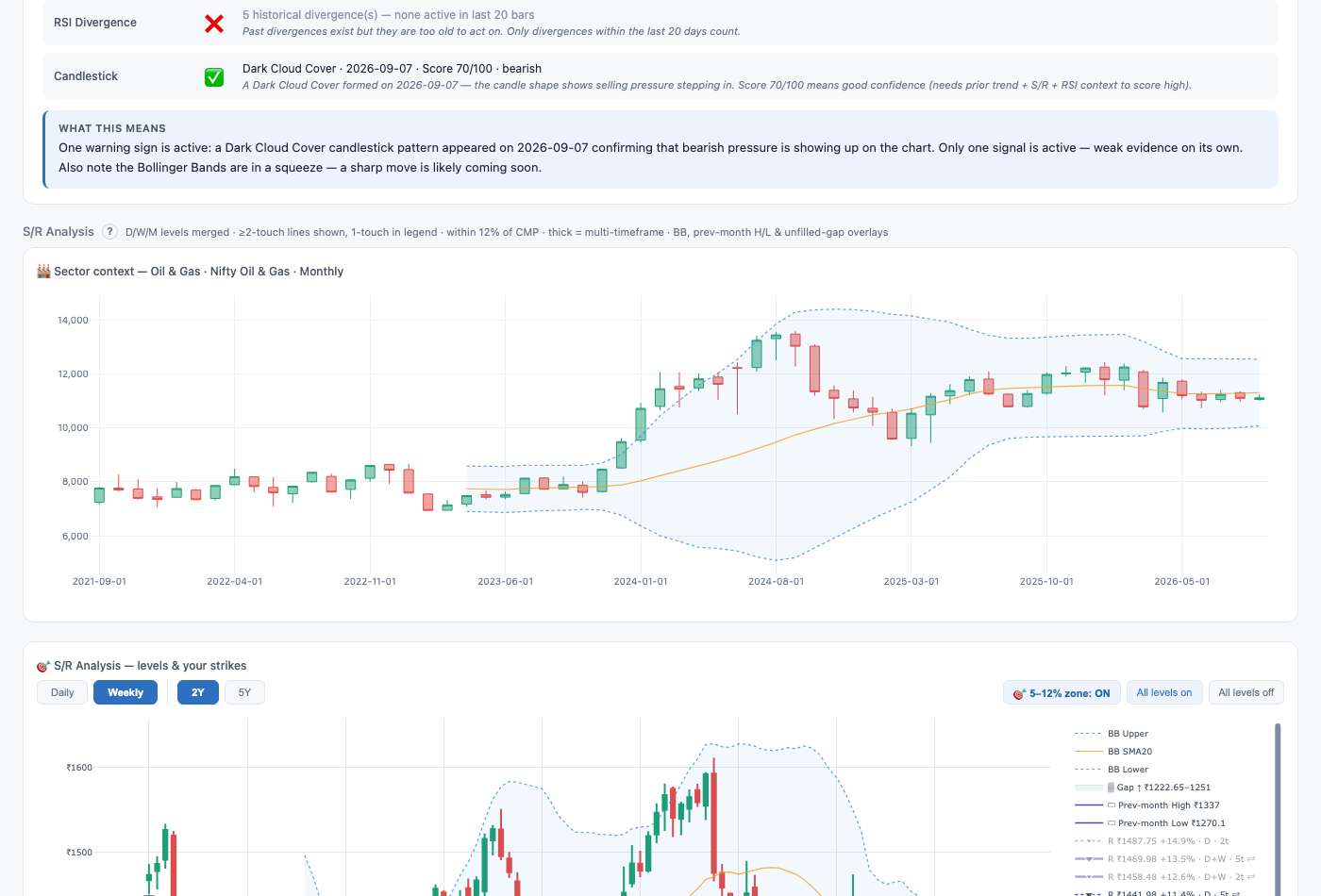
- The Chart Summary at the top of the page lists the Bollinger Band levels for the weekly and daily charts — upper, middle and lower band (20 periods, 2 standard deviations), each with its distance from the current price. The middle band is the 20-period average; the outer bands widen when the stock is volatile and narrow when it is quiet.
- The shaded 5–12% zone marks the classic option-selling distance from the current price.
- Shaded gap zones are unfilled price gaps (≥1.5%) — a gap-up acts as support, a gap-down as resistance, until price fills it.
- Above it, the sector index chart (monthly candles + Bollinger bands) shows the sector's bigger picture.
5Build a position
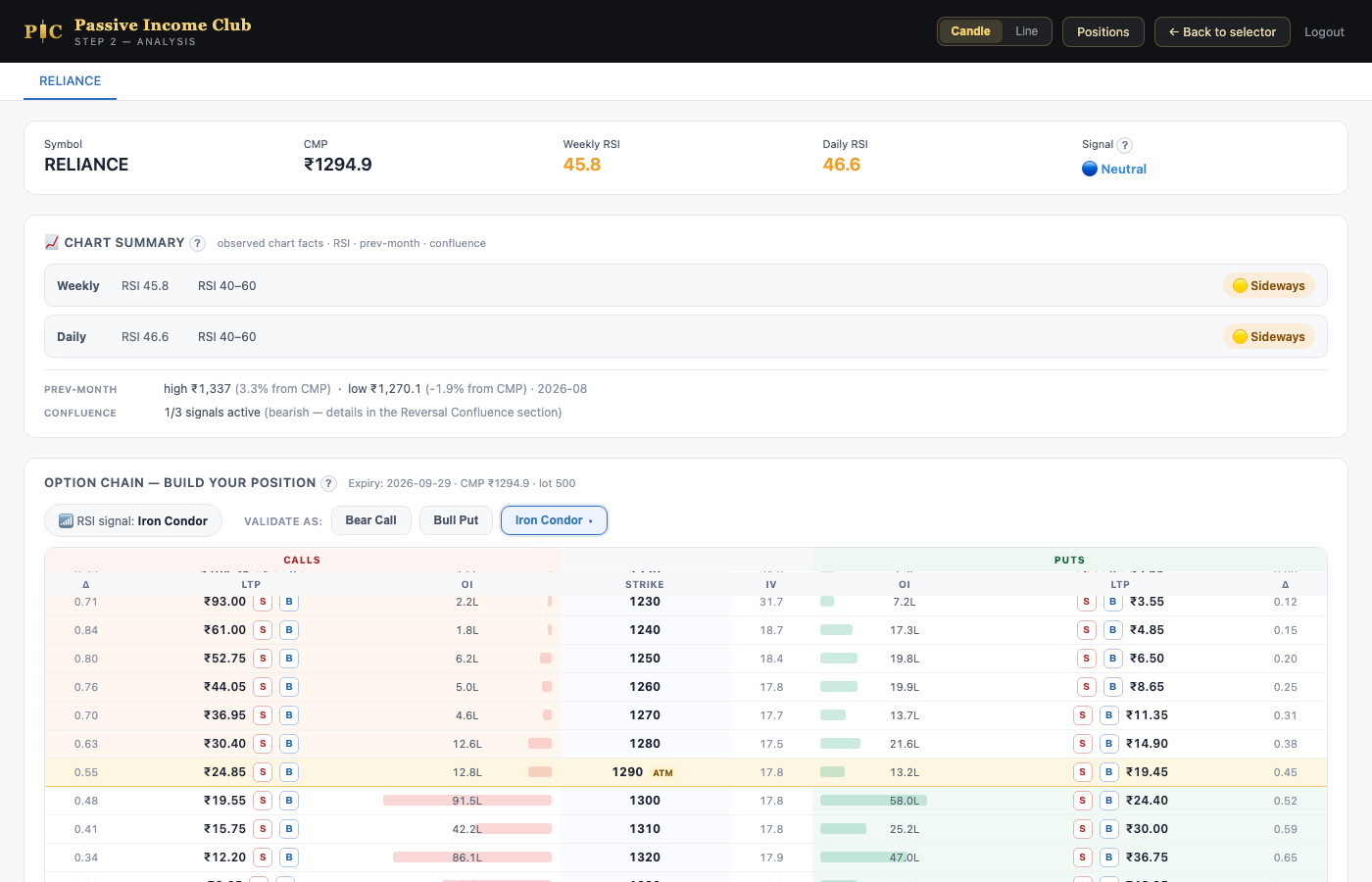
- The option chain on the analysis page lists every strike with live premium, delta, IV and open interest.
- Pick strikes by clicking them — the chart draws your strike lines (cyan = puts, magenta = calls) over the S/R levels so you can see exactly where your short strike sits relative to real support/resistance.
- As you set lots, the app fetches your actual broker margin and checks it against the 20%-of-capital cap — a red warning means the position is too big for your recorded capital.
- It also shows max profit/loss, breakevens and the probability of profit (POP) for the spread you're building.
6Record & track positions
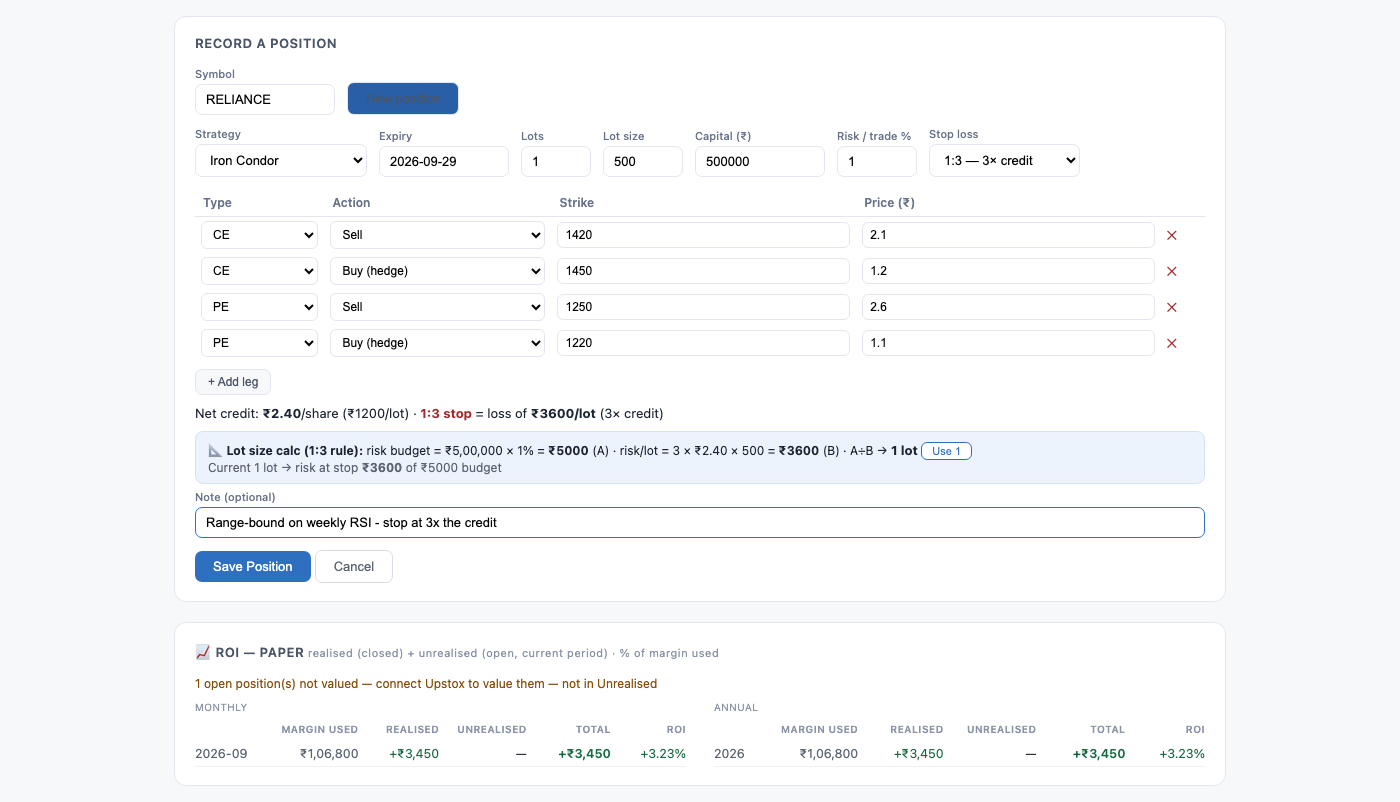
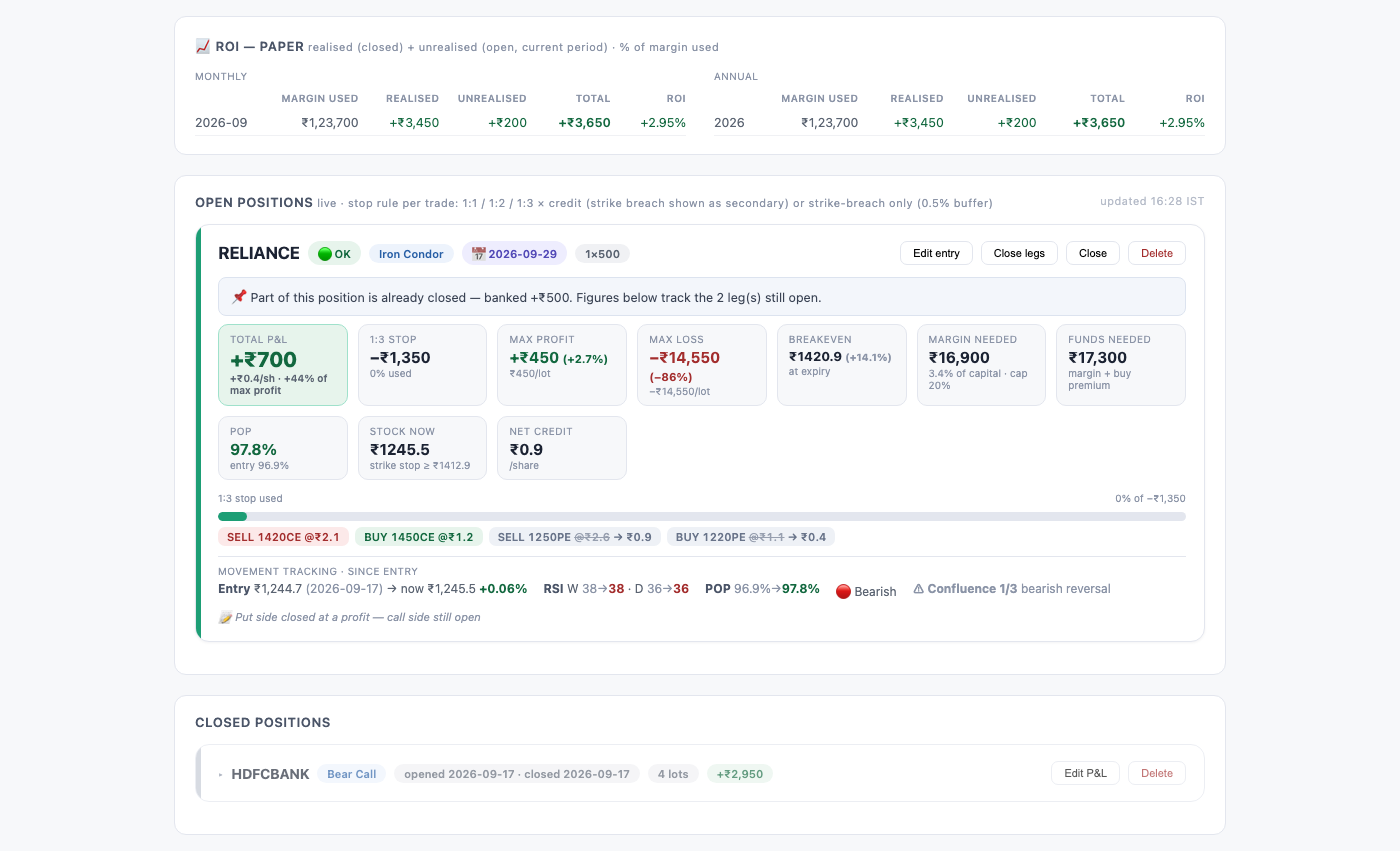
- Record trades as real or paper (practise without money).
- Choose your stop rule per trade: exit at 1×, 2× or 3× the credit received, or on a strike breach (stock touches your short strike, 0.5% buffer).
- Each open position card shows live P&L, % of your stop used, margin, POP now vs entry, breakevens and movement since entry.
- The ROI card shows one row per month — Margin used · Realised · Unrealised · Total · ROI — with an annual table beside it, where Margin used is the average of the months (the same capital is reused month after month) and the ROI is the year's P&L over that average. Realised is what you've closed; Unrealised is the live P&L of what is still open.
- Reused capital. If you close a trade mid-month and put the same money into a new one, tick Reused capital when you record the new position (or press Mark reused capital on its card later). Its profit or loss still counts, but its margin is not added a second time to that month's Margin used, so the month's ROI reflects the money you actually had at work. It applies to the month the position was opened; in a later month its margin counts as normal.
Closing a position — all of it, or one side
The platform never places orders. Exit at your broker first, then record it here.
- Close — the whole position is out. Enter your realised P&L (it feeds the ROI card).
- Close legs — you exited only part of it, for example the put side of an Iron Condor. Type PE or CE for a whole side (or the leg numbers), then the price each leg was closed at. Those legs are struck through on the card and their profit or loss is banked into the ROI card straight away.
- The position stays open for the remaining legs, and its credit, max loss and stop are recalculated for what is left. When you close the last leg, the position closes automatically with the full total.
- Edit entry corrects recorded entry prices to your actual fills. Delete erases a position from your history — use Close, not Delete, for a real exit.
7Notes — your trading journal
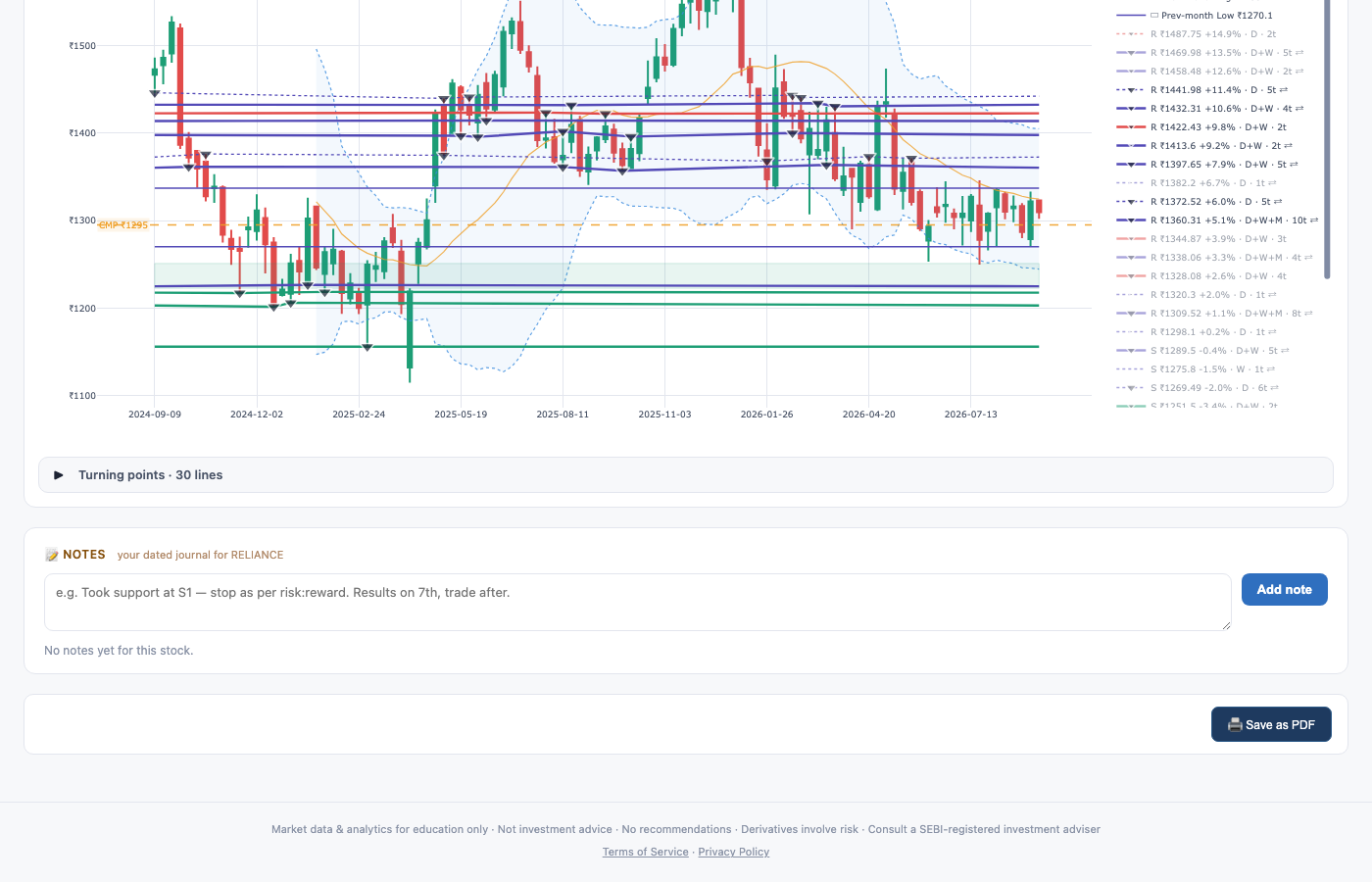
- Every stock has a notes journal at the end of its analysis page — add, edit or delete timestamped entries.
- Dashboard cards show a small note-count badge so you can spot stocks you've written about.
8Telegram alerts & community
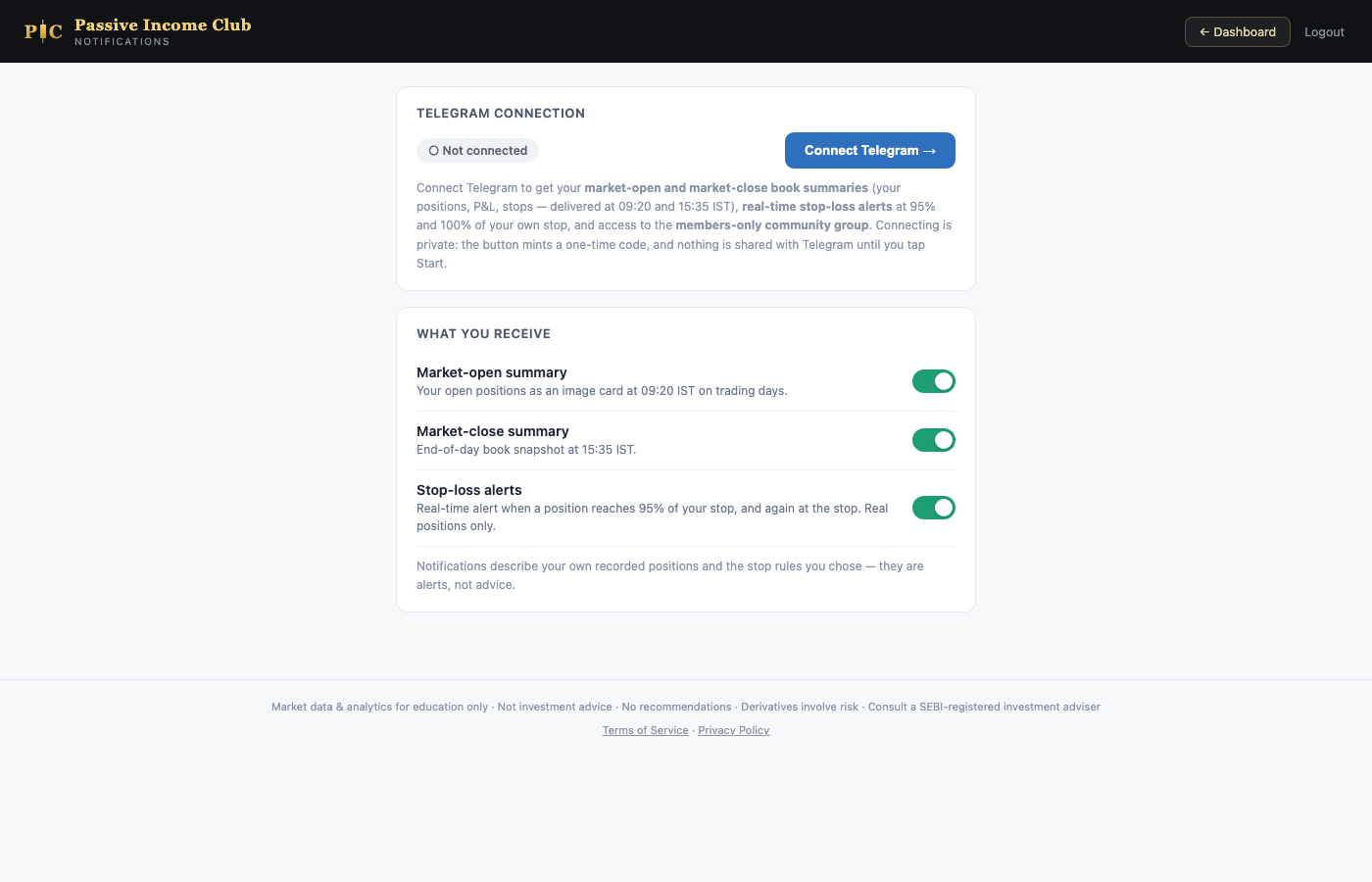
Telegram alerts and the community group are for subscribers — during the free period this page is a preview, and the buttons unlock once you subscribe.
- Tap Alerts in the dashboard header → Connect Telegram — scan the QR or tap through; a private one-time code links your account.
- You'll get your book summary at market open (09:20) and close (15:35) — your positions, P&L and stops as a card image.
- Stop-loss alerts fire when a real position reaches 95% of your stop, and again at 100%.
- Join the community — scan the QR for the members-only Telegram group. Your join request is approved automatically because you're a member.
9Billing
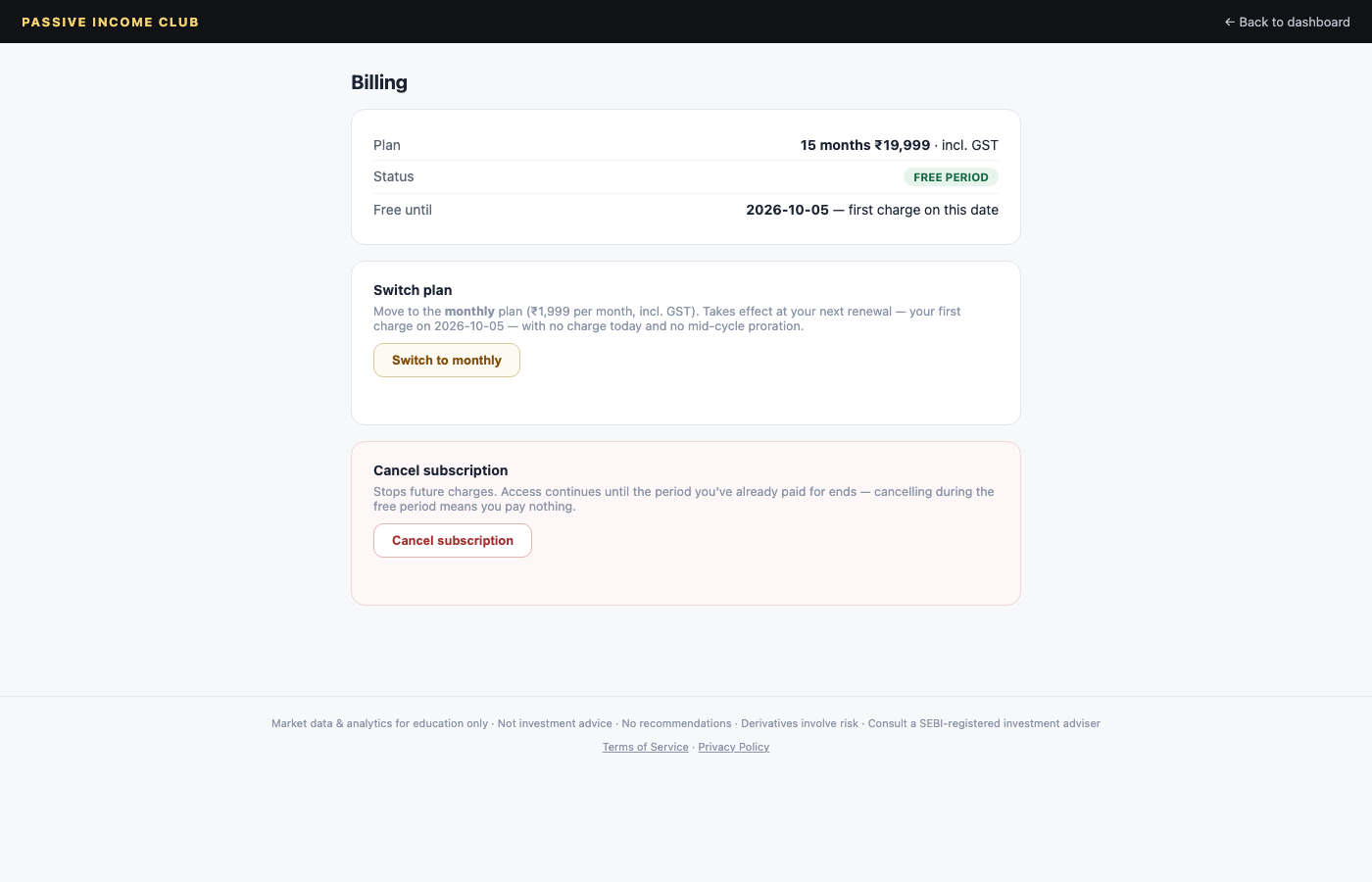
- The Billing button in the dashboard header opens your billing page.
- Download receipts for every payment.
- Switch plans (monthly ↔ 15-month) — takes effect at your next renewal, no charge today, no proration.
- Cancel anytime — future charges stop; access continues until the end of what you've paid for.